


Buying field service software takes an afternoon. Getting a whole team to use it properly takes weeks, and that is where most switches go wrong. The software gets bought, half the team keeps using paper, the office runs two systems at once, and six months later the owner wonders why nothing improved. A planned migration avoids most of that. This guide lays out a six-week plan for a small business moving from paper, whiteboards and spreadsheets.
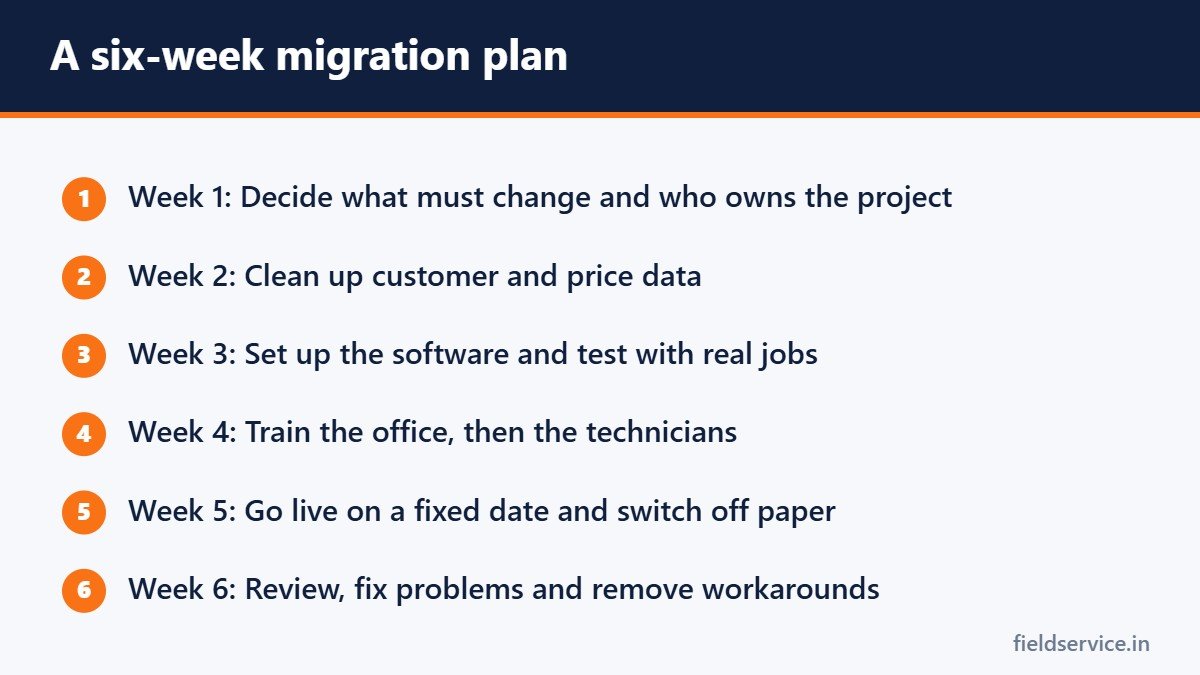
Week 1: Decide what must change
Write down the three problems the software must solve, such as late invoices, double-booked technicians or lost job notes. These become the measure of success. Then name one person who owns the project. In a small business that is often the office manager, with time set aside each week to do it properly.
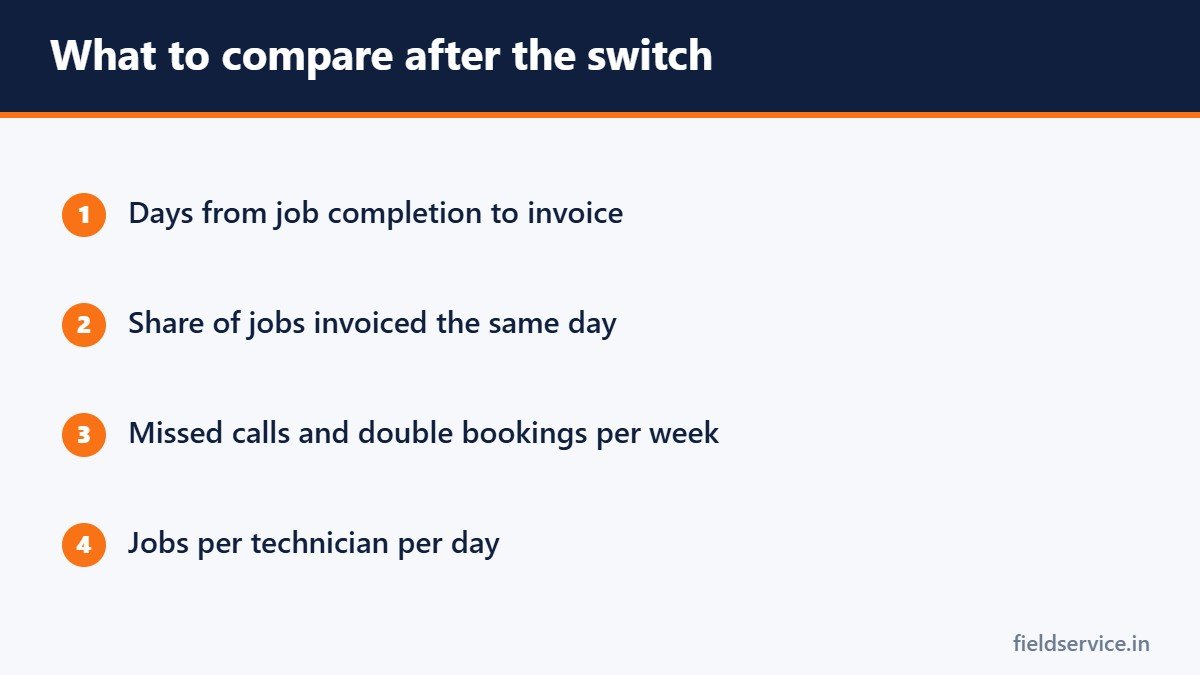
Record a few numbers now, so you can compare later: days from job to invoice, calls answered versus missed, jobs per technician per day, and callbacks. Our guide to field service KPIs explains them.
Week 2: Clean your data
Every software import is only as good as what you put in. Before importing:
- Remove duplicate customers and merge records for the same address.
- Standardize addresses, phone numbers and email addresses.
- Separate customers from service locations if one customer has several properties.
- Build a price book: your standard services, flat rates, diagnostic fees and common parts.
- List equipment at each site where you know it, with model and serial numbers.
This is tedious work, but skipping it means technicians arrive at the wrong address or quote the wrong price in the first week, and trust in the new system collapses.
Week 3: Set up and test
- Create user accounts and decide who can see prices, costs and reports.
- Set up job types, checklists and forms, such as your service report and job completion checklist.
- Connect payments and accounting only after the basics work.
- Run a dozen real recent jobs through the system from booking to invoice, as a test.
The test will expose gaps: a missing job type, a confusing form, a price that is wrong. Fix them now, before anyone depends on the system.
Week 4: Train the office, then the technicians
Train office staff first, because they will answer the technicians’ questions. Then train technicians in short sessions focused on their daily routine: seeing the schedule, opening a job, adding notes and photos, capturing a signature and closing the job. Do this on their own phones, with real examples.
| Who | Train on | Time to allow |
|---|---|---|
| Office | Booking, scheduling, dispatch, invoicing, reports | Several hours over a few days |
| Technicians | Schedule, job notes, photos, forms, signatures, payments | One or two short sessions plus a ride-along day |
| Owner | Reports and settings | An hour, then weekly reviews |
Week 5: Go live, and switch off paper
Choose a go-live date in a quieter week, not the first cold snap or heat wave. On that day, stop issuing paper tickets. Running both systems “for safety” is the most common reason migrations fail, because staff fall back on whatever is familiar. Keep a supervisor available all day to answer questions, and expect the first week to be slower.
Week 6: Review and fix
- Ask every technician what slows them down.
- Remove steps and fields nobody needs.
- Check that every completed job was invoiced.
- Compare the numbers you recorded in week 1.
Common mistakes
- Buying the most feature-rich plan and switching everything on at once.
- Importing messy data and fixing it later.
- Training technicians in a classroom instead of on real jobs.
- Letting senior technicians opt out.
- No single owner for the project.
Before you buy, use the spreadsheet vs software cost calculator and the software payback calculator, and read field service software ROI. Our guide to choosing field service software covers selection.
Related guides
Six everyday forms in Word and PDF, plus Excel workbooks that total mileage reimbursement and overtime pay.
Not sure yet? Try two forms free or see all packs.
Free Software Switching Kit: a selection scorecard in Excel and a six-week switching checklist.
Frequently asked questions
How long does it take to switch to field service software?
For a small business, a planned switch often takes four to eight weeks from decision to settled use. Most of that time goes on cleaning data, setup and training.
Should we run paper and software side by side at first?
It is usually better to test thoroughly before go-live and then switch off paper on a fixed date. Running both systems tends to keep people on the old one.
How do I get technicians to use the new software?
Train them on their own phones with real jobs, keep the daily steps simple, involve a respected senior technician early, and fix their complaints quickly.
What data should I import into field service software?
Clean customer and service location records, a price book of standard services and parts, and equipment details where you have them. Remove duplicates before importing.
This article is general guidance. Each software product works differently; follow the vendor’s setup documentation.